Instructions.
A few simple steps.
A whole new perspective on time.
Set up your C1, learn its buttons and gestures, and find the right setting whenever you need it. No account is needed. This guide covers Beta 9.0.3.
Start setup- Calibre One and its USB-C cable
- A phone, tablet or laptop with a browser
- Your 2.4 GHz Wi-Fi name and password
Screen examples are illustrations based on the current interface. Always use the details displayed by your own C1.
Power up your C1
Connect the USB-C cable to your C1 and a USB power source. On a new C1 with no saved Wi-Fi network, the startup splash is followed by the QR setup screen. Leave C1 connected to power throughout setup.
Have your phone, tablet or laptop nearby, along with your home Wi-Fi name and password. C1 connects to 2.4 GHz Wi-Fi.
The QR code joins C1’s temporary Wi-Fi network. The separate Browser setup code above it opens the browser controls in step 3. Scan your clock’s screen, rather than the example shown here.
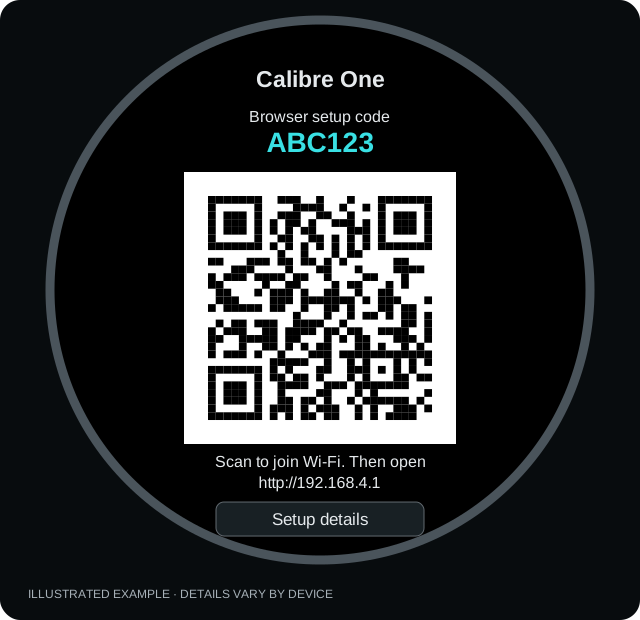
Scan the QR code to join C1
Open your phone’s camera or QR scanner and point it at the QR code displayed on C1. Accept the prompt to join its temporary CalibreOne- Wi-Fi network.
Prefer to connect manually? Tap Setup details on the C1 screen to find its hotspot name and Wi-Fi password. Open Wi-Fi settings on your phone, tablet or laptop and join that network using the displayed password.
This temporary network connects you directly to C1. If your phone asks whether to stay connected, choose to stay on this network while you finish setup.
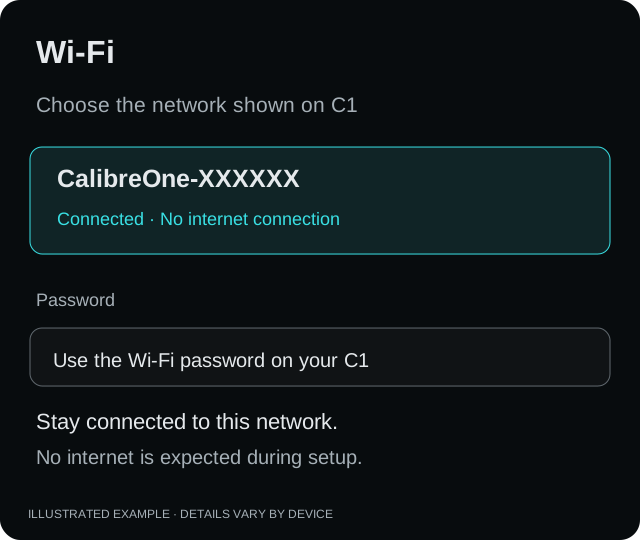
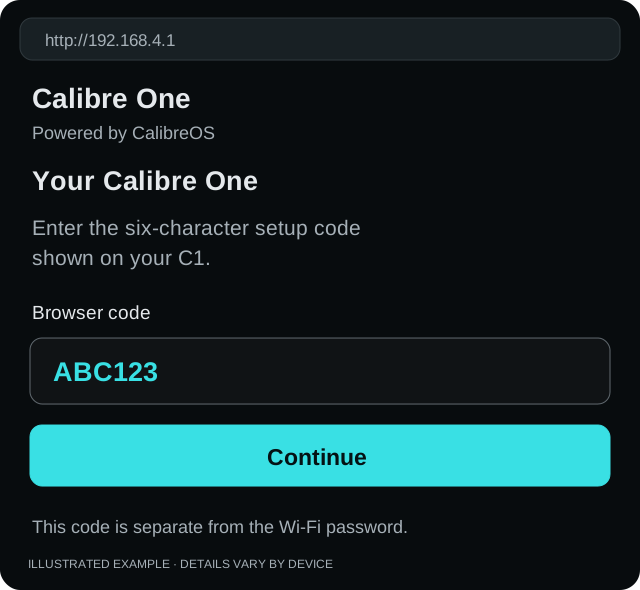
Open the browser interface
The QR code joins Wi-Fi; it does not open the browser controls. While connected to C1’s setup network, open a web browser and type http://192.168.4.1 into the address bar.
Enter the six-character setup code shown on C1, then select Continue. Use the browser code here, rather than the Wi-Fi password.
Type the address exactly as shown, including http://. It only works while you are connected to the C1 setup network.
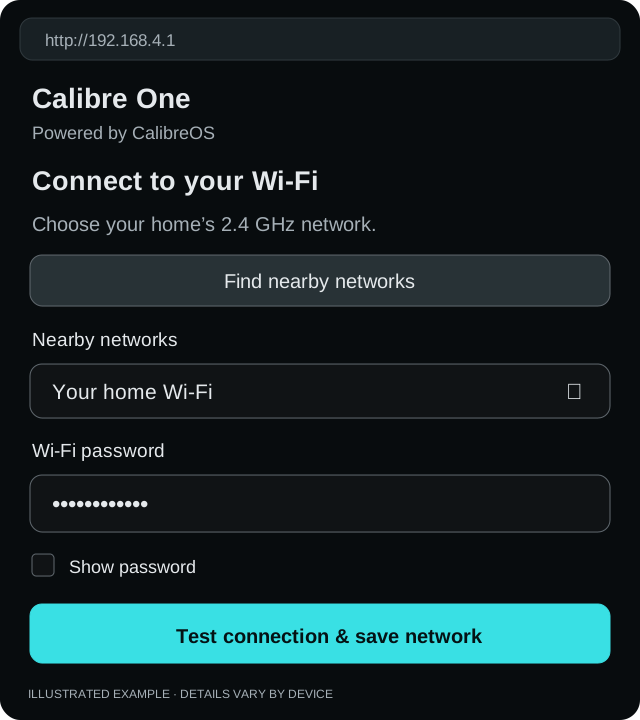
Connect C1 to your home
On the Wi-Fi screen, select Find nearby networks. Choose your home’s 2.4 GHz network from Nearby networks, or enter its name in the network-name field.
Enter your home Wi-Fi password and select Test connection & save network. Keep C1 powered while it checks the connection.
The setup page may disconnect while this happens. That is expected. If the test fails, check the network name and password, then try again.
Reconnect and make it yours
Reconnect your phone or computer to your home Wi-Fi. On C1, hold either top button for two seconds to open Settings, then go to Advanced Options → Wifi Settings & Updates to find its current browser address and access code.
Open the address shown on C1 in your browser. It may be different from the temporary setup address. Your browser and C1 need to be on the same network.
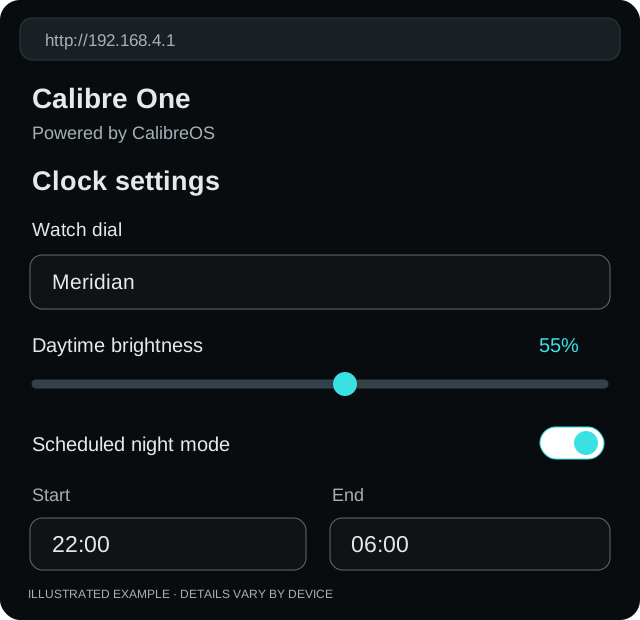
Choose a dial, set daytime brightness and choose your night-mode hours. Select Save settings to apply your changes. Keep Wi-Fi time takes priority enabled if you want network time to take precedence over a manual setting.
Enjoy the dial
Your C1 is ready. Choose an included dial, adjust the screen and explore its controls below. The eight included dials are built in; five additional slots are available for compatible C1D files.
This guide describes CalibreOS Beta 9.0.3. Check your installed version in Settings → About. Features such as chronograph, GMT, date and Lume depend on the selected dial.
Buttons, swipes & Settings
These directions assume C1 is upright, with the dial facing you. Use the two buttons along the top edge.
| Action | What happens |
|---|---|
| Swipe left across the dial | Go to the next available dial. The new dial is revealed from right to left. |
| Swipe right across the dial | Go to the previous available dial. The new dial is revealed from left to right. |
| Short-press the left top button | Go to the previous dial. In Beta 9.0.3 this replaces the old display on/off shortcut. |
| Short-press the right top button | Go to the next dial. |
| Press and hold the dial | No menu action. On a stopped chronograph, holding for 0.8 seconds resets it. |
| Hold either top button for two seconds | Open Settings using the physical button instead of the touchscreen. |
| Swipe up or down within a menu list | Scroll through the list. This does not change dials. |
Move between dials
Make a deliberate horizontal swipe, then lift your finger. Allow the redraw to finish before the next swipe. The sequence wraps around at each end and skips hidden included dials and empty upload slots.
Find your way around Settings
- Hold either top button for two seconds. Screen holds do not open Settings on any dial.
- Tap a menu entry to open it. Swipe vertically within the list to reveal entries below the screen.
- Use Back to return to the previous menu. From the main Settings screen, tap Return to clock.
- Where a screen offers Save and Cancel, tap Save to apply your change or Cancel to leave it unapplied.
Use short button presses for dial changes. Holding either top button for two seconds opens Settings; release it when Settings appears. Longer hardware power-button behaviour is unchanged.
Use the chronograph
Select a dial with a working chronograph, such as Silver Moon or Navy Sport. The stopwatch controls are on the touchscreen; the top buttons change dials.
- Start: tap the dial once and lift your finger. Timing starts immediately; there is no double-tap delay.
- Stop: tap once again. Wait for the stopped indication before resetting.
- Resume: tap once while stopped to continue from the accumulated time.
- Reset: with the chronograph stopped, hold your finger still on the dial for 0.8 seconds. Follow the “Hold to reset” percentage until “Chronograph reset” appears, then release. Releasing does not restart it.
Tap once to stop, then hold for 0.8 seconds to reset. A hold while timing does not open Settings or reset the chronograph. For a menu alternative, hold either top button for two seconds, then choose Reset chronograph. That option is disabled while timing.
Read the dial
Chronograph hands and registers show elapsed time; their positions and scales depend on the dial design. The normal running-seconds display continues to show the clock’s seconds and is separate from the stopwatch.
Keep taps separate from gestures
Keep your finger still for a tap. Sliding across the screen changes dials. Holding a stopped chronograph resets it. Screen holds never open Settings. Release early or move your finger to cancel a reset hold. Double-tap reset is no longer used in Beta 9.0.3.
The chronograph’s elapsed-time state is shared between chronograph dials. Changing dials or opening Settings does not reset it. A device restart starts a new chronograph session.
Control C1 from your browser
Your C1’s browser interface is hosted by the clock itself. It is separate from the public Calibre Studio website. Find the current address and code at Settings → Advanced Options → Wifi Settings & Updates.
- Connect your phone, tablet or laptop to the same network as C1.
- Type C1’s displayed address into the browser address bar, including
http://. - Enter C1’s Browser code and select Continue.
- Choose the relevant tab. In Settings, press Save settings after editing the form.
| Tab | Use it for |
|---|---|
| Settings | Choose a dial; adjust brightness, Lume, night mode, main time, Wi-Fi time priority and GMT offset. |
| Wi-Fi | View and manage up to five saved networks, scan nearby networks and test and save a new connection. Use the available network controls to reorder or forget saved entries. |
| Calibre Store | Hide or restore built-in dials, browse available C1D files, review a selection, download files and upload them into C1’s extra slots. |
| Upload dials | Upload a compatible C1D file you have already downloaded or created. Save a copy of an existing dial before replacing its slot. |
| Firmware | Check the public release, download its C1U and select the downloaded file for installation. |
| About | Check the installed firmware and download a diagnostics file for troubleshooting. |
Upload a dial you created
- Open Calibre Creator, download the toolkit and use it with your chosen AI tool to create a compatible C1D file.
- Preview the C1D here to check its appearance and supported functions.
- In your C1’s browser interface, open Upload dials. Choose the C1D from your device’s Downloads or Files folder, then select an extra slot.
- If replacing a dial, use Save existing dial before replacing first.
- Press Upload to C1 and leave C1 powered until the upload completes.
- Press Show uploaded dial on C1 to display it.
A C1D changes a dial; a C1U updates the firmware. Upload each file in its matching section. Installing a C1D cannot add a complication that the firmware does not support.
Update CalibreOS
Firmware installation is a manual process in your C1’s browser interface. The clock does not silently install a new release.
- Check the installed version in Settings → About on C1.
- Open C1’s browser interface and select Firmware.
- Press Check for firmware updates and read the release information.
- Press Download firmware (.c1u) and save the file on your phone, tablet or computer.
- Use the file chooser under Select the downloaded file and install to pick that C1U. The browser requires you to select it manually; downloading alone does not install it.
- Press Install selected update. Keep C1 powered and allow the upload and restart to finish.
- Reconnect to C1’s browser page if necessary, then check About on the clock to confirm the new installed version.
A normal firmware update does not require a factory reset. Beta 9.0.3 updates the included collection while preserving your settings and five custom slots. Silver Moon leads the collection; Tidal Atlas replaces Navy Diver, and Navy Sport joins the included dials.
If you get stuck.
I cannot see my home Wi-Fi.
C1 uses 2.4 GHz Wi-Fi. Check that your router has 2.4 GHz enabled and that C1 is within range, then scan again. You can also enter the network name manually. If you use a guest network, its isolation settings may prevent your phone from reaching C1 after setup.
My phone says there is no internet.
That is expected on the temporary CalibreOne setup network. Stay connected while you enter the browser code and home Wi-Fi details. Reconnect your phone to your normal Wi-Fi after C1 restarts.
The setup page will not open.
Scanning the QR code joins C1’s Wi-Fi; you still need to open the browser address. Check that you are connected to the network shown on C1, then type http://192.168.4.1 directly into the browser’s address bar. After home Wi-Fi setup, use C1’s current browser address from Advanced Options → Wifi Settings & Updates instead.
Which password or code should I enter?
There are three separate details: C1’s setup Wi-Fi password joins its temporary network; C1’s six-character browser code opens its controls; your home Wi-Fi password connects C1 to your router. Read the field label and use the matching detail.
Can I set the time without Wi-Fi?
Yes. On C1, hold either top button for two seconds to open Settings, then choose Time & date → Main time & date. Enter the time and date and save. The Wi-Fi time priority setting determines whether network time replaces a manual setting when Wi-Fi becomes available.
Can I use the Store from this website?
The Collections page shows the dials. To manage installed dials or use Calibre Store, open your C1’s own browser interface while connected to the same network as the clock.
The chronograph will not reset.
Stop with one tap, then keep a finger still on the dial for 0.8 seconds until Chronograph reset appears. Release after the reset; it will not restart. You can also hold either top button for two seconds and choose Reset chronograph in Settings. Update to Beta 9.0.3 for these controls.
The left button no longer turns the display off.
On Beta 9.0.3, a short press of the left top button selects the previous dial. The right selects the next dial. To dim the clock, open Settings → Night mode and enable Night mode on now.
I cannot find a menu item or dial.
Swipe vertically inside the Settings list to reveal lower entries. For a missing included dial, open Hide / restore dials and restore it. Uploaded dials appear after a successful upload; empty slots are skipped. Check About if your controls differ from this Beta 9.0.3 guide.
The browser address no longer works.
Check the current address on C1 under Advanced Options → Wifi Settings & Updates. It can change after a router or network change. Keep both devices on the same network and avoid guest-network isolation. The setup address http://192.168.4.1 applies while connected to C1’s setup hotspot.
The date, GMT hand or night schedule seems wrong.
Check Time & date → Main time & date first, including Wi-Fi time priority. The firmware uses UK local time. GMT offset is relative to that main time; night scheduling uses it too. Night mode on now overrides the schedule until you switch it off.
Still need help? Send Calibre Studio an enquiry →